
Welcome, New Irumis!
Are you ready?
It's time to start your journey with Easytask!
Being an Irumi is easy.
Let's take a look at the entire process!
Step.1 Check Task Request Messages
•
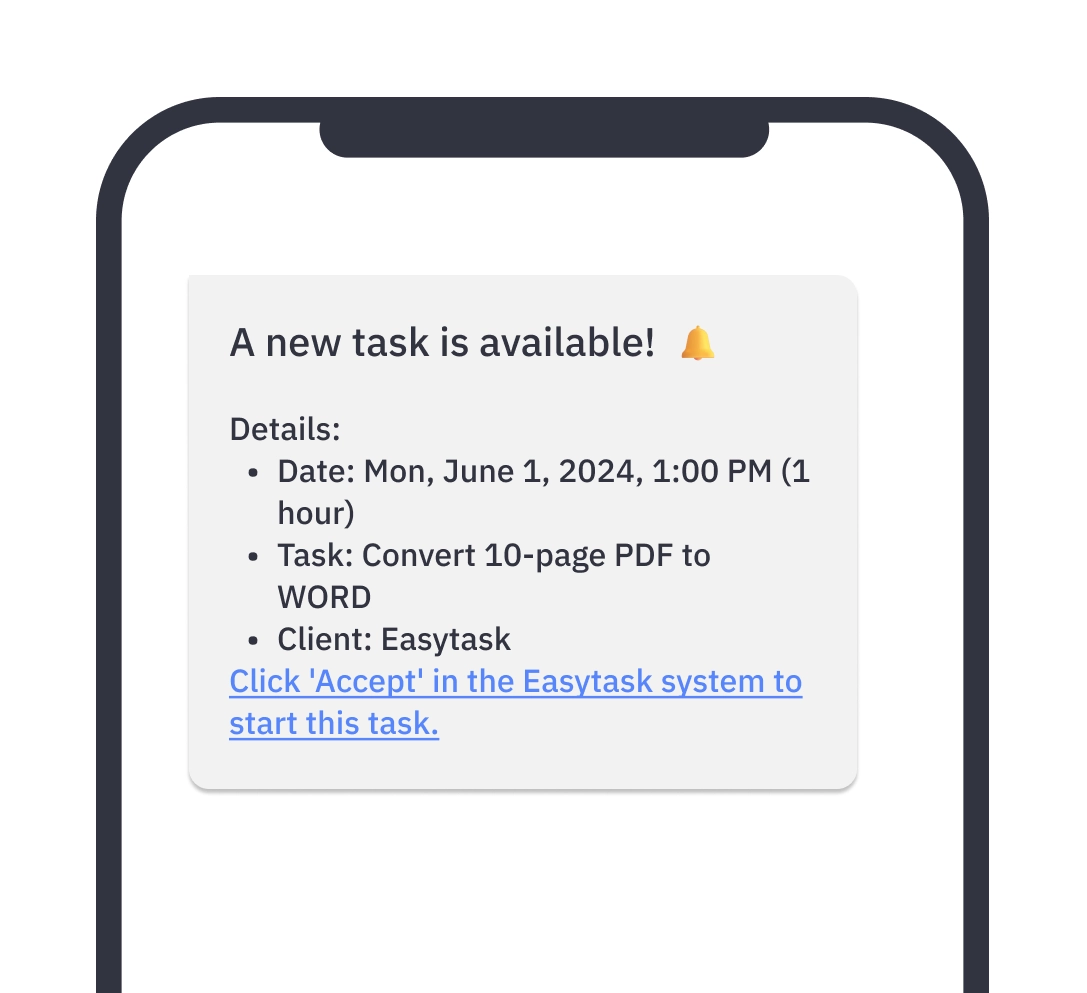
When a task matching your profile arises, you'll be notified via a message to your mobile phone.
•
Task matching is on a first-come, first-served basis, so please click accept quickly.
•
Please access the Easytask website through the link.
-
Step. 2 Accepting & Matching Available Tasks
Choosing Task Availability
•
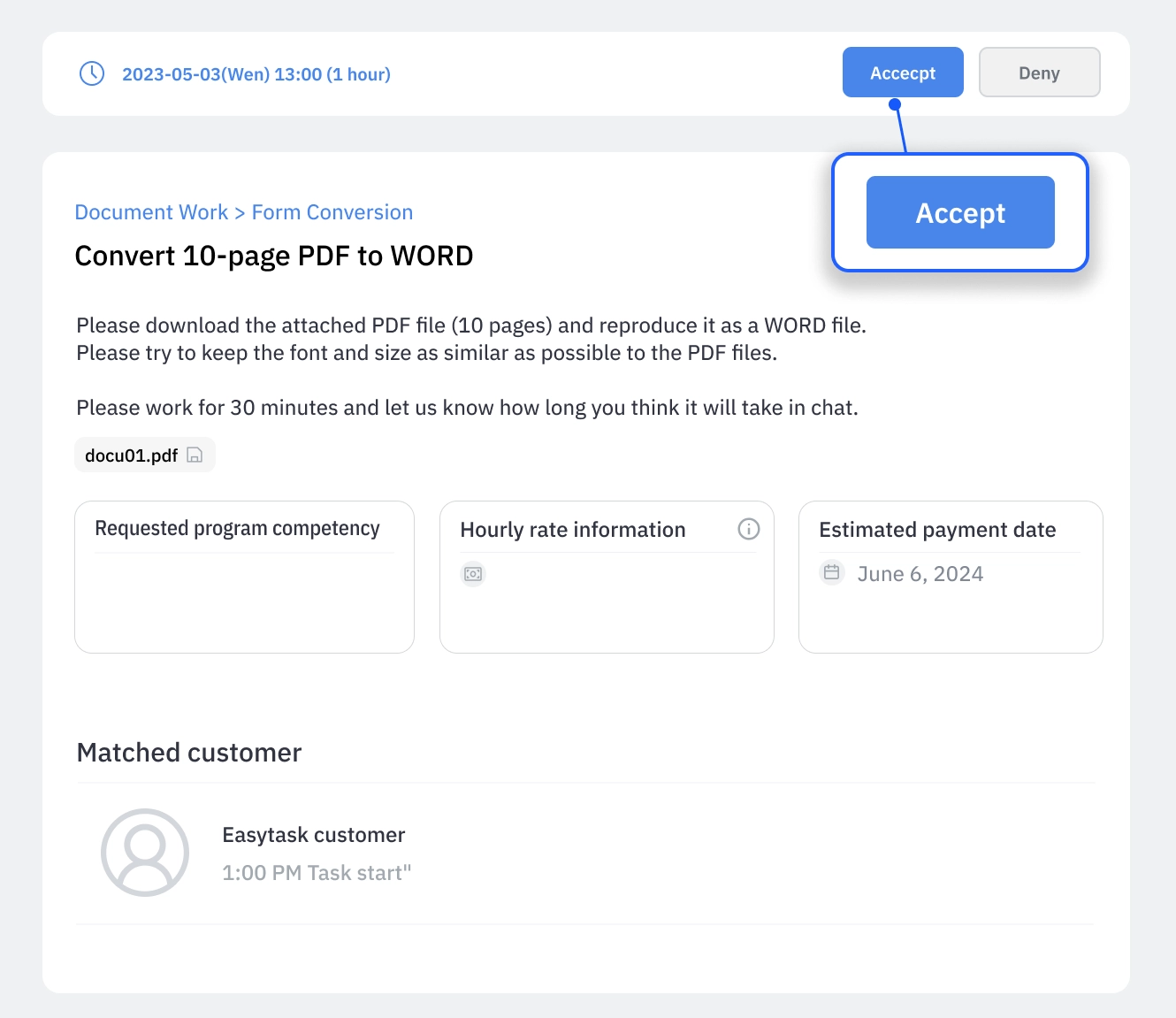
Click on the Easytask Task Link
 Log Received Requests
Choosing Task Availability
Log Received Requests
Choosing Task Availability
Log Received Requests
Choosing Task Availability•
After reviewing the task date/time and details, please click "Accept".
If you are unable to take on the requested task, please click "Decline".
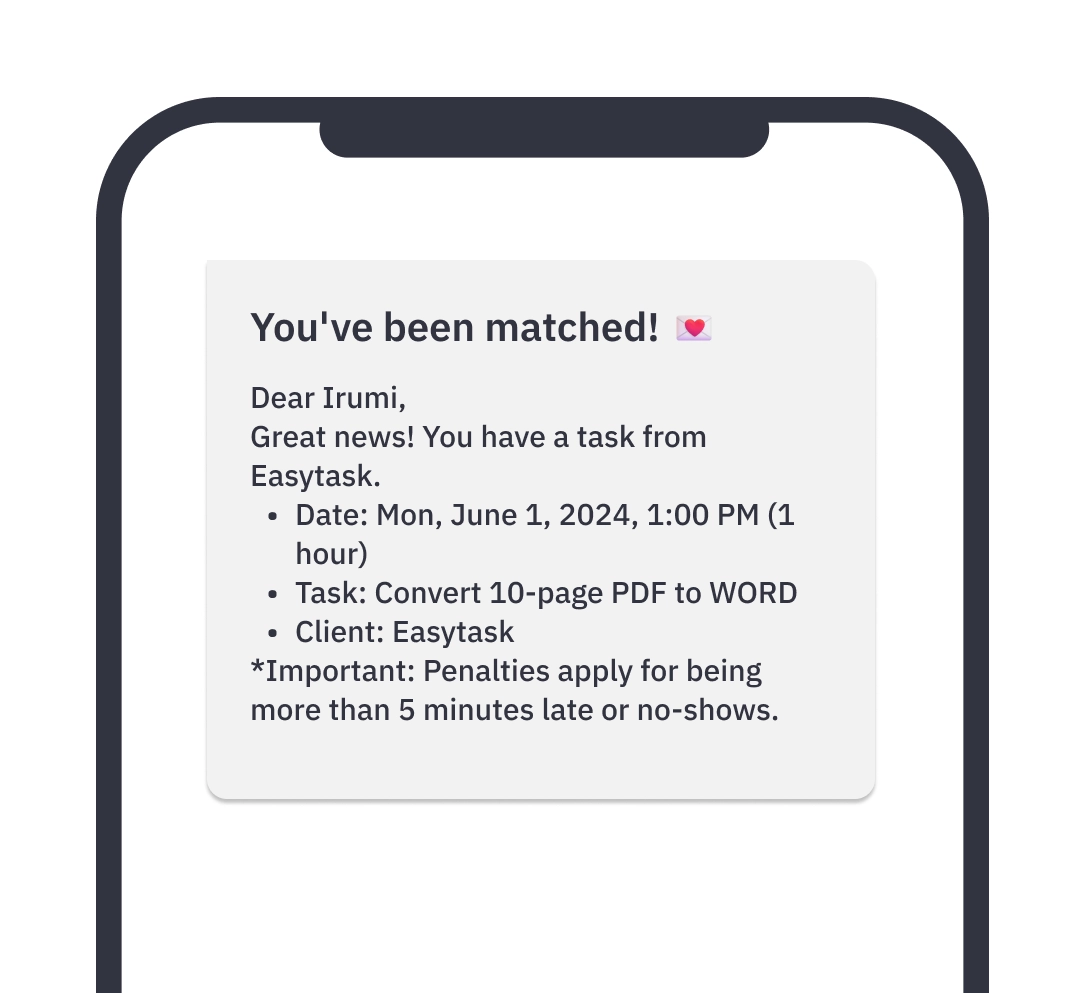
Task Matching Confirmation Message
•
Once the matching is complete, you will be notified via message.
•
Review the accepted task and its date/time, and check the pre-task checklist before starting.
Ah! If the task has already been matched:
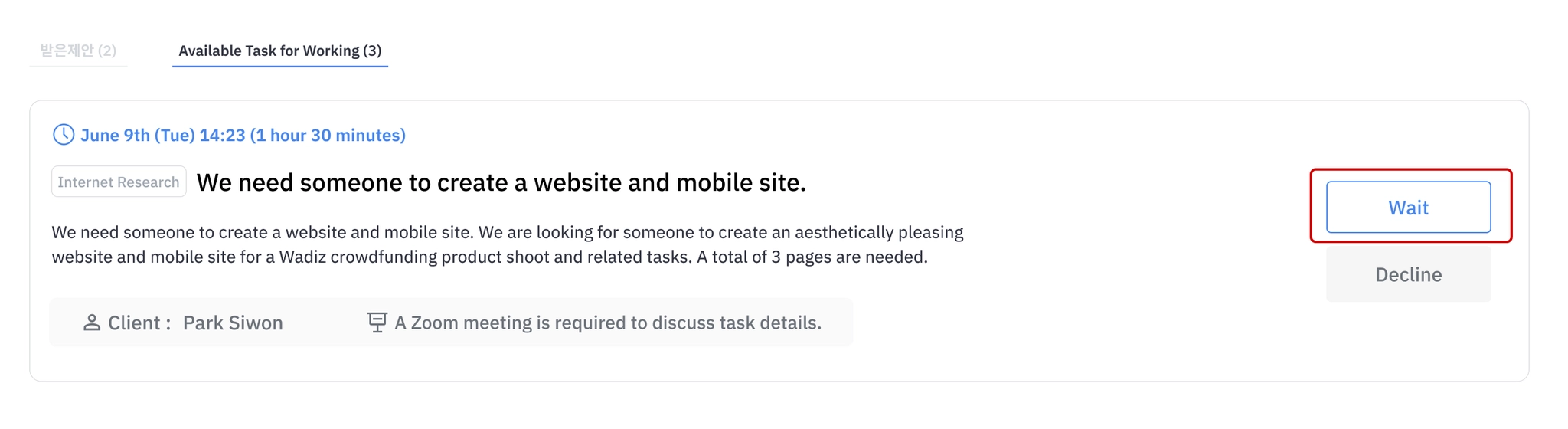
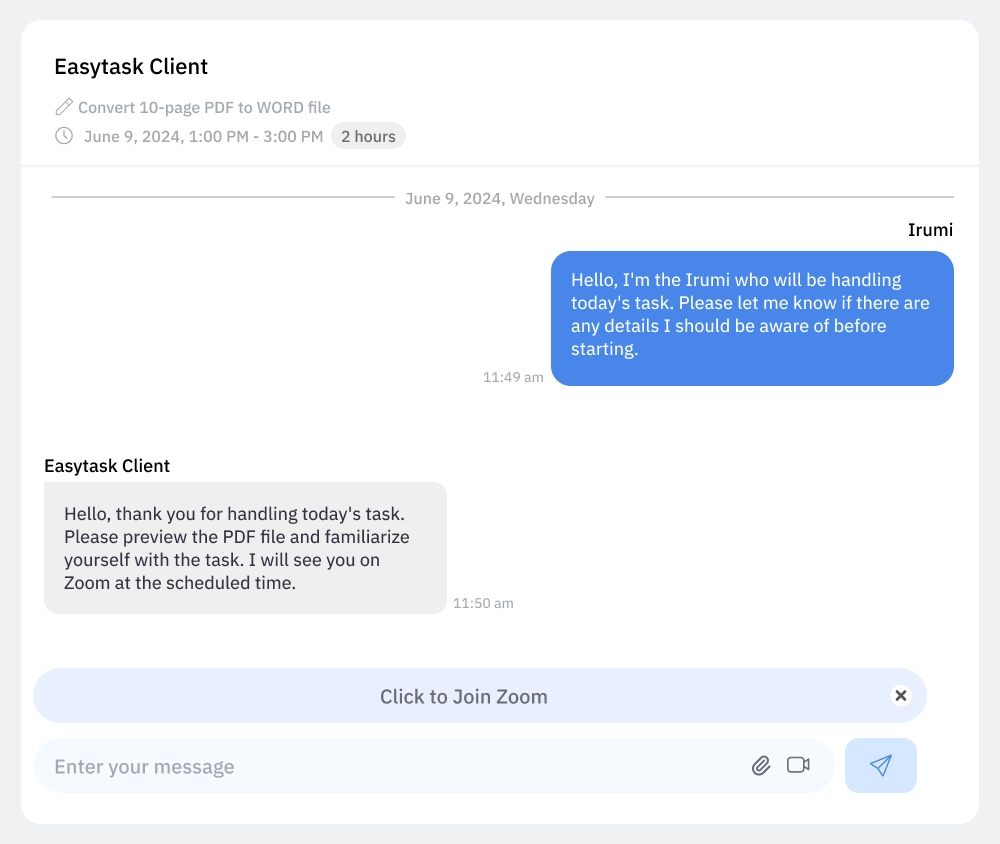
If communication with the client is necessary:
My Task > Click on the specific task > Click on the Chat button
Using the Chat Feature
You need to cancel even though the matching is complete?
•
If you encounter difficulties after matching, please contact Easytask before the task starts.
•
We can reschedule the work hours or replace you with another Irumi if necessary.
•
Please note: Canceling within 15 minutes before the task starts will result in a 30-day task matching restriction. Make sure to contact us before then.
If the task is canceled at the client's request after matching?
•
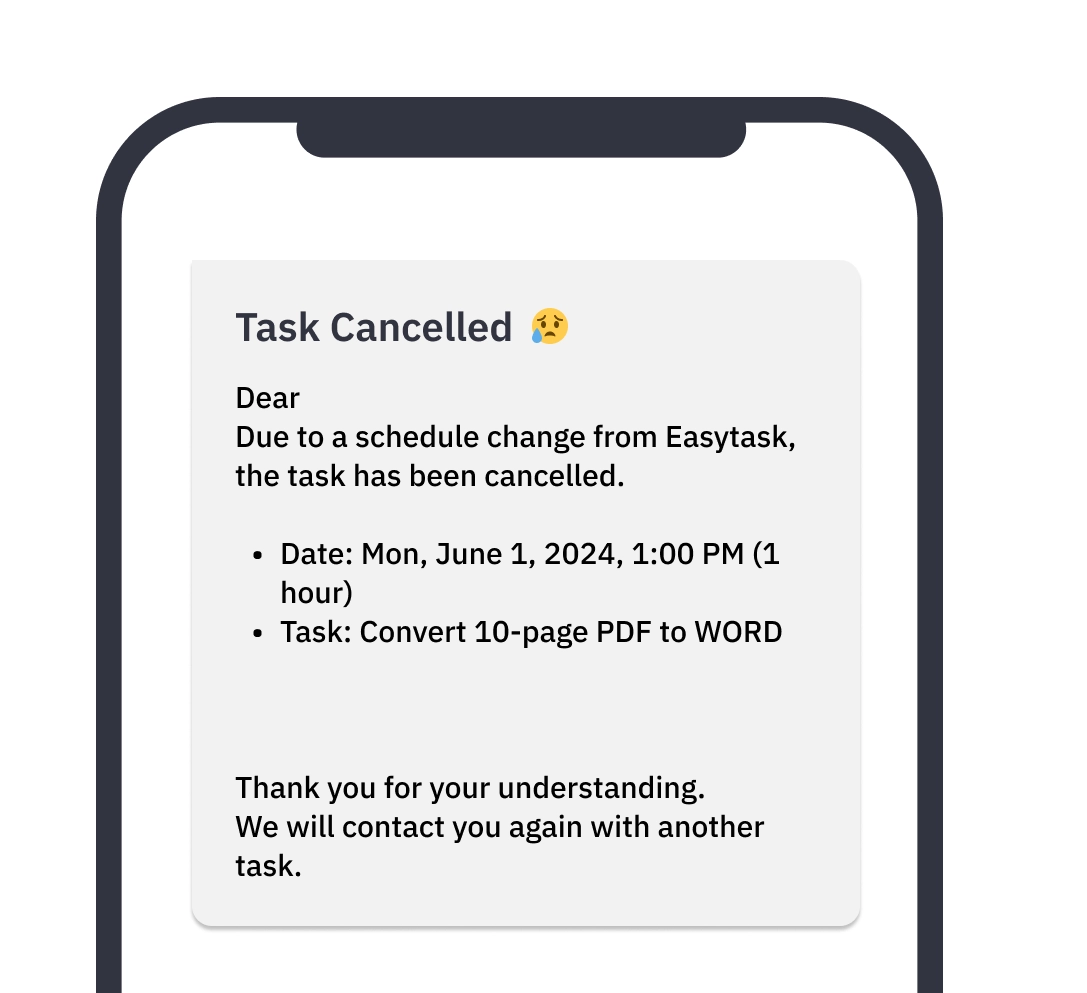
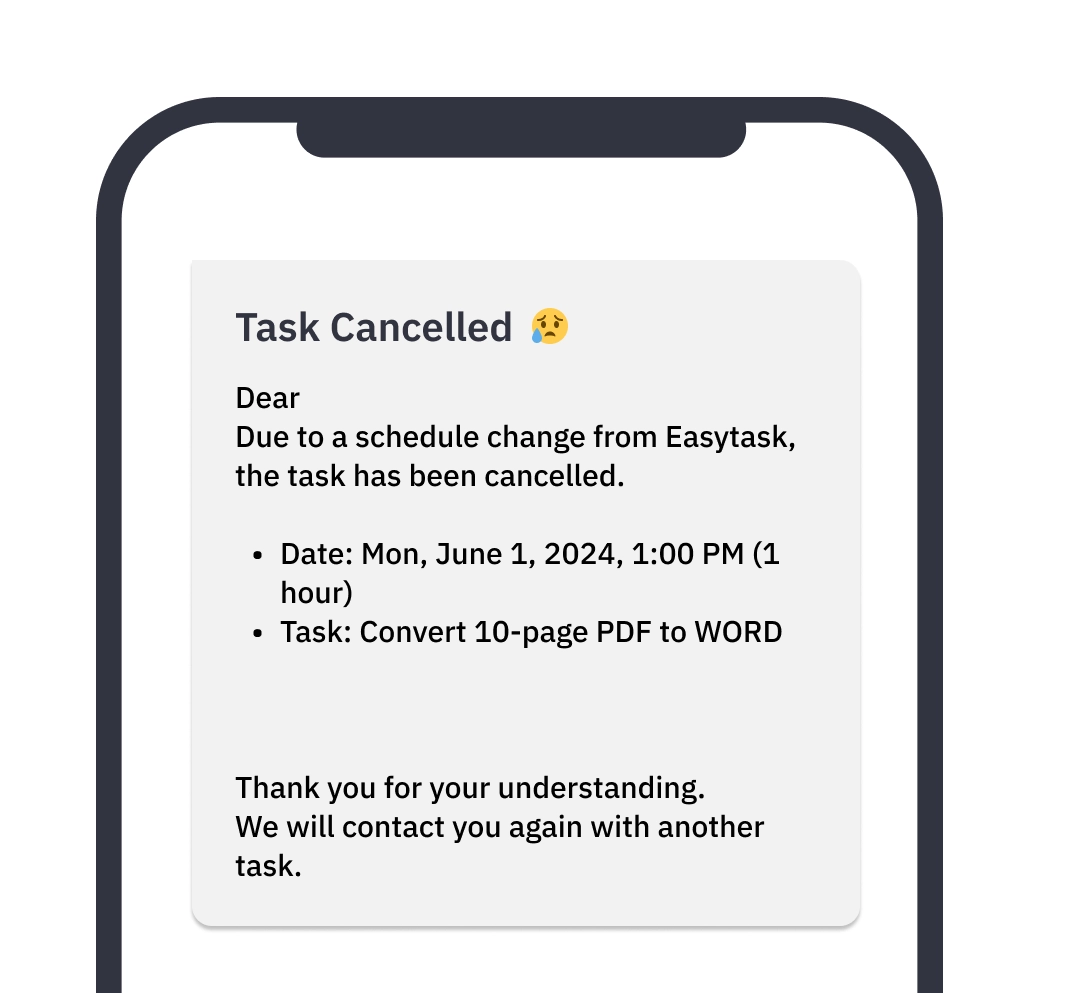
If the matching is canceled due to the client's circumstances after completion, you will be notified via message.
•
If the client cancels after the task starts or is a no-show, 15 minutes of waiting time will be credited as work time.
Step. 3 Click the Start Work button
3-1. Get Ready to Start Work
•
Prepare 10 minutes before the task begins.
•
Make sure your PC and programs are working properly and your internet connection is stable!
3-2. Access Irumi My Page
•
Before starting your task, access My Page.
◦
My Page > My Tasks > Pending Tasks
Go to My Page
Go to My Page3-3. Click the Start Work button
•
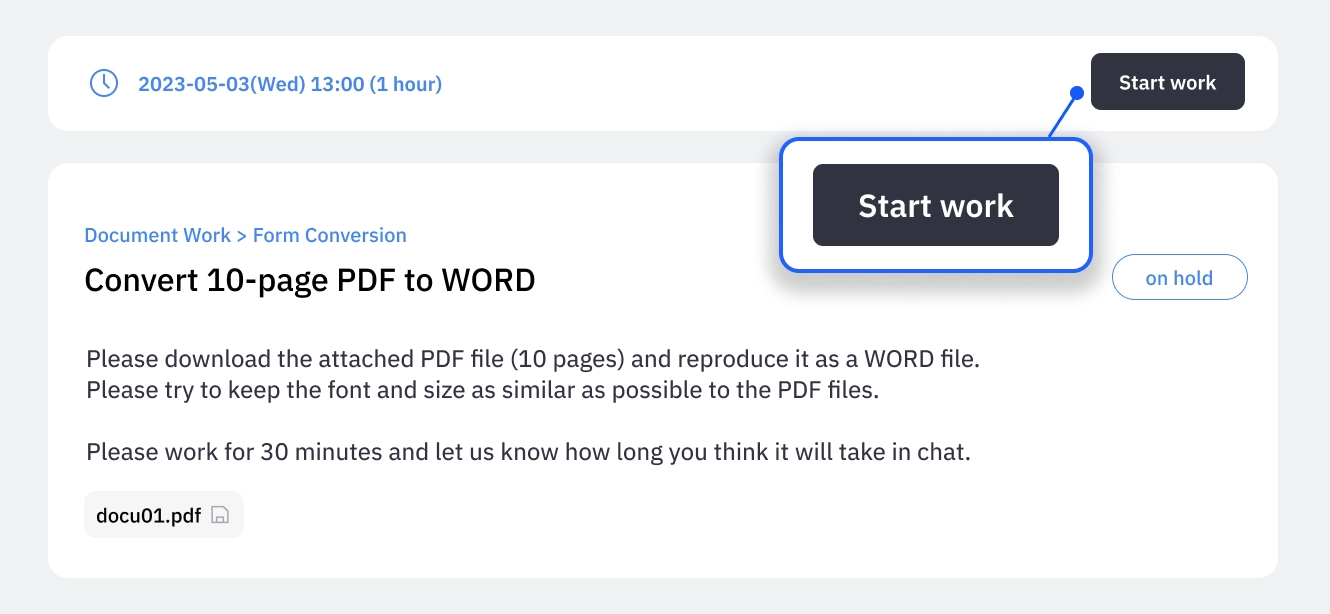
Once the task starts, please click the Start Work button.
•
The Start Work button will be activated 5 minutes before the task begins. If it’s not active, please refresh the page (F5).
•
About 15 minutes after the task start time, the button will be deactivated.
•
If you were unable to click the Start Work button, please leave the task start and end times with customer service.
Step. 4 Proceeding with the Task
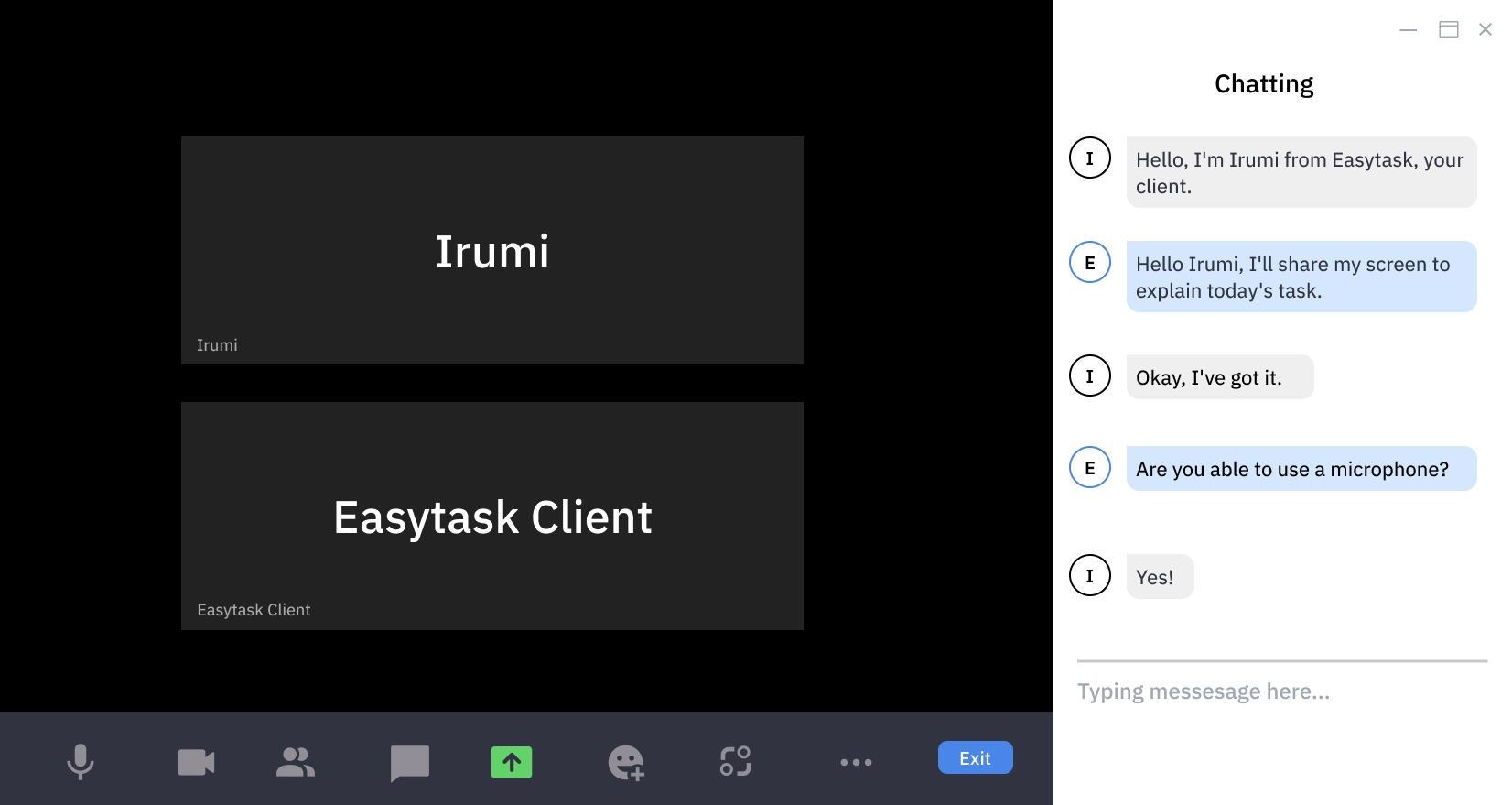
4-1. If real-time communication with the client via ZOOM is required:
•
You don't need to show your face on ZOOM.
•
Confirm task details with the client using the microphone or chat.
4-2. If the task can be done without Zoom communication:
•
Click the Start Work button and begin the task immediately.
•
Focus and work diligently to complete the task within the allotted time.
◦
Ensure you finish the task within the agreed time with the client
•
If you have any questions during the task, be sure to ask the client via chat.
4-3. When the estimated work time and actual work time differ..!
•
Sometimes, tasks may take longer than expected.
In such cases, explain the situation to the client via Zoom or chat and discuss how much additional time is needed.
•
If you need extra time but cannot reach the client,
proceed with the task for the scheduled time and then end it at the designated time.
•
If the client is unavailable, please leave your inquiry with the Easytask customer service.
Customers screen
•
Customers can extend the reservation time in 1-minute increments.
•
This feature is available for customers to use only while the task is in progress.
Please note that if you extend the task time without consulting the client, it may be difficult to reflect the additional time.Step. 5 Deliver the completed file and click the End Task button.
Organize and Deliver Completed Files
•
Deliver the completed files according to the method discussed with the client.
•
Before ending the task and deleting the files, double-check the completed files for any errors!
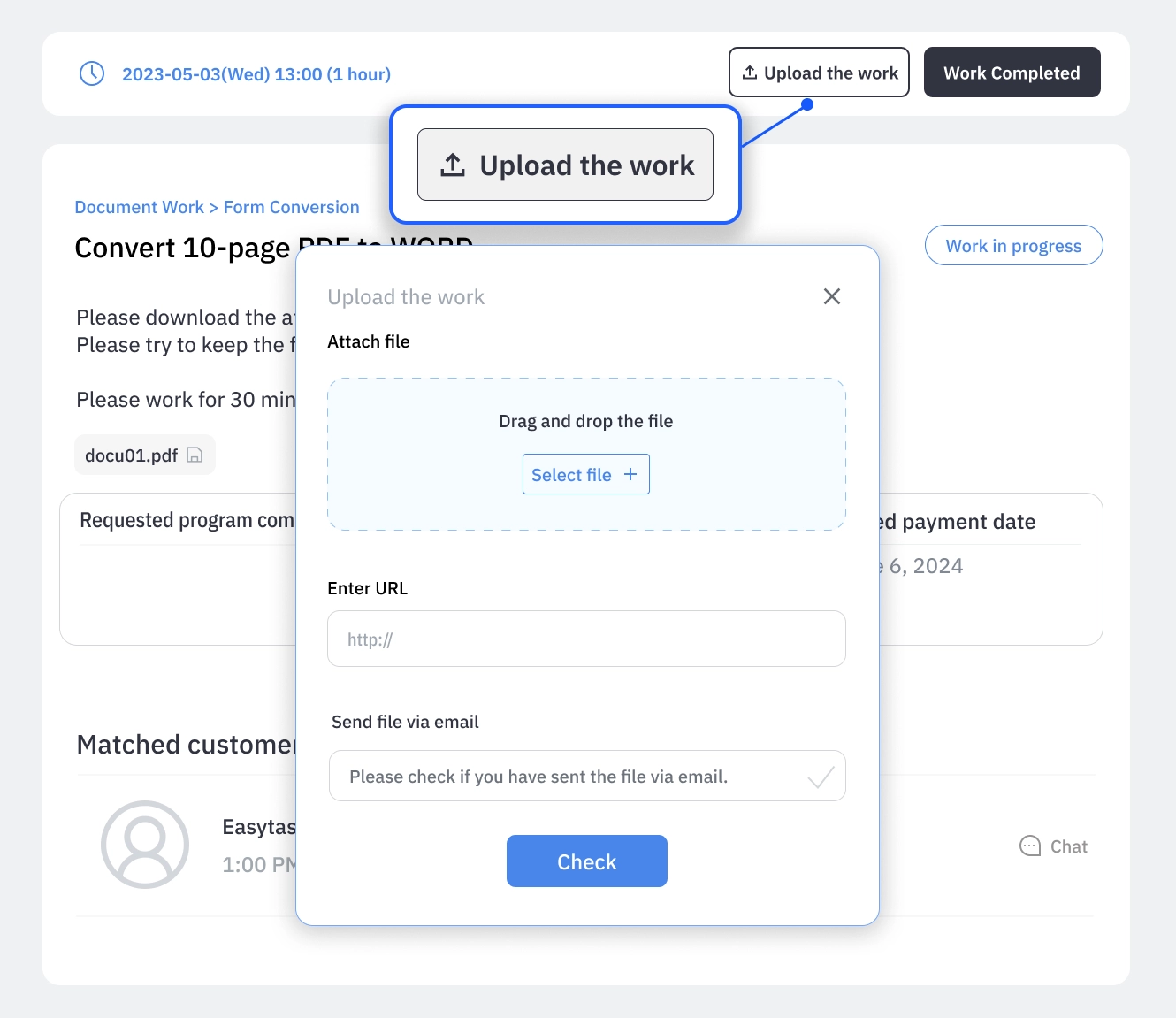 If delivering the completed files via Easytask menu:?
•
My Tasks > In Progress > Task Request Form >
Click Upload Completed File > Attach files and confirm
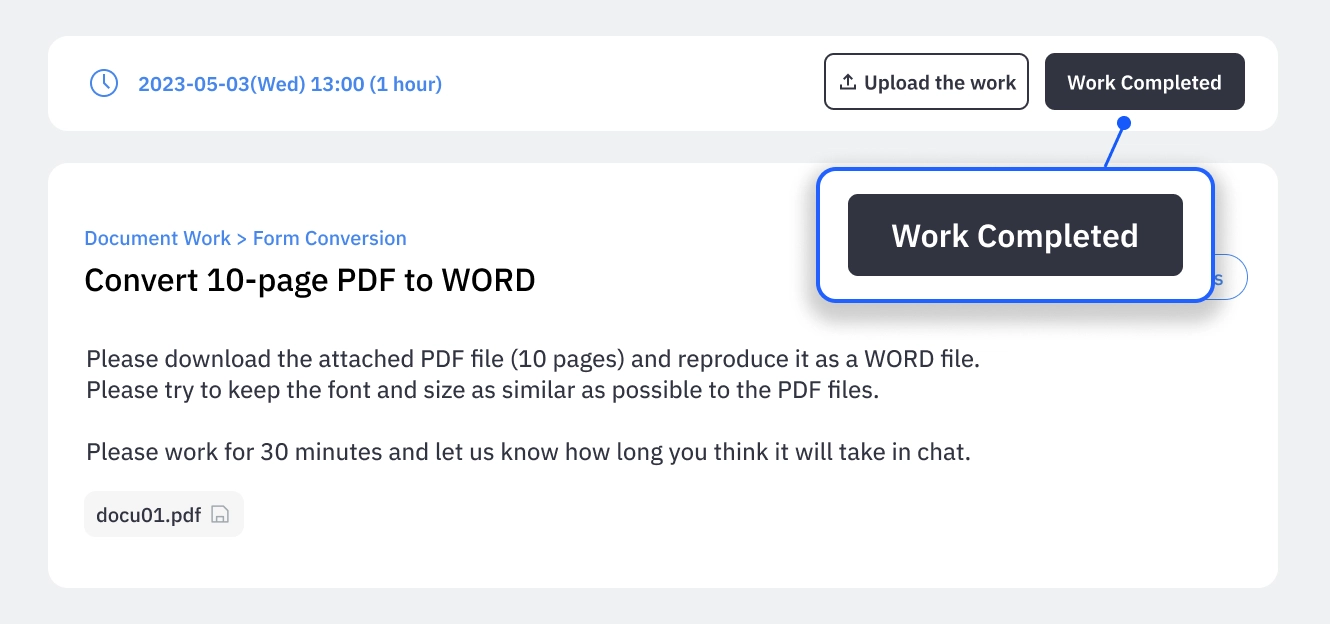
Click the End Task Button
•
After delivering the completed files, go to My Tasks > In Progress > Task Request Form and click the End Task button to finish the task.
•
Once you click the End Task button, you will no longer be able to use the task chat, so make sure all communication with the client is complete before clicking it.
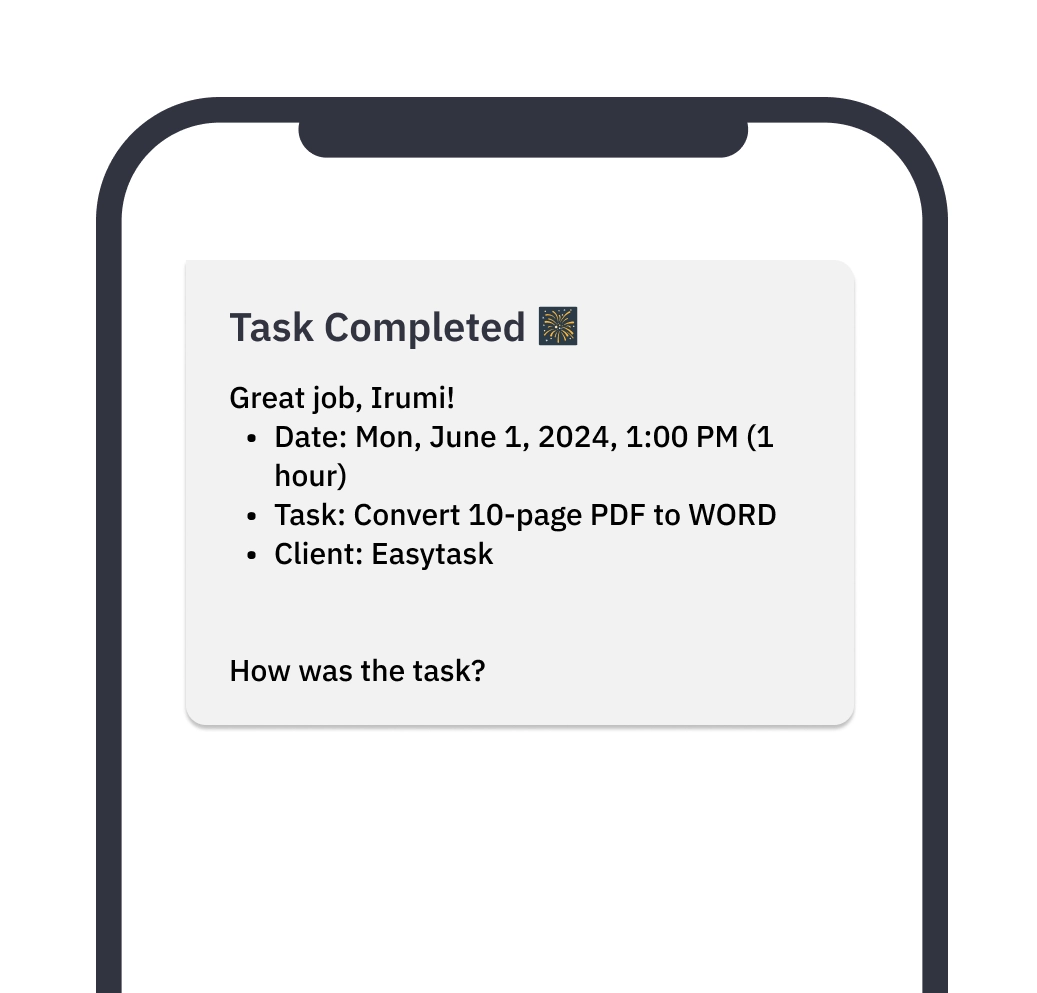
Task Completion Message
•
After completing the task, a [Task Completed] message will be sent to your mobile phone.
•
Please leave feedback about your task experience! It greatly helps improve Easytask's services.
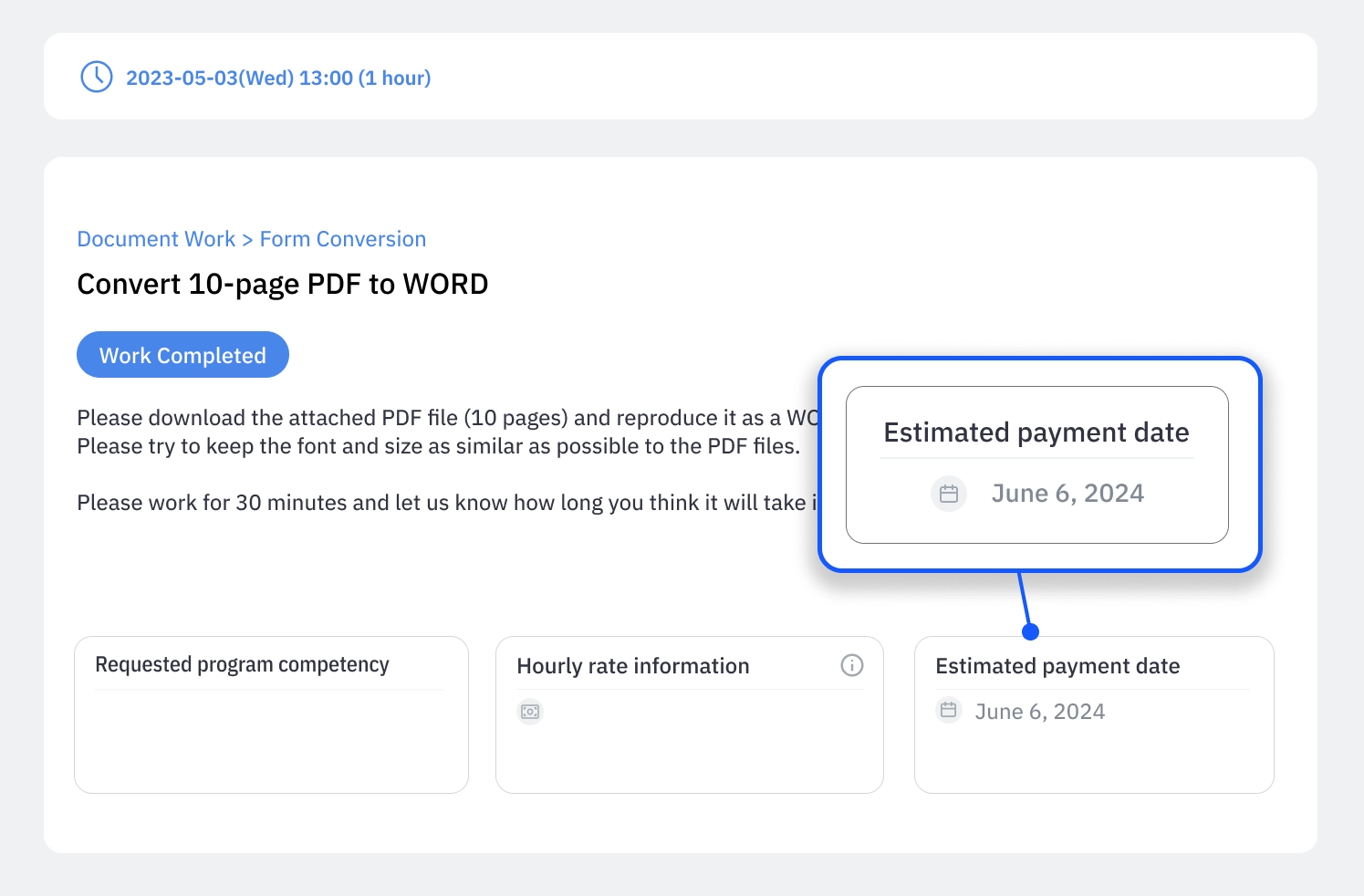
Check Completed Tasks
•
You can check the details of completed tasks and the expected payment date on My Page.
•
Once the task is completed, the payment will be deposited into your registered account.
Tardiness/No-show/Cancellation and Penalty Policy
Tardiness
•
Entering the task more than 15 minutes late without prior communication with the client.
•
If you expect to be late, please contact Easytask. We will communicate with the client to adjust the time and proceed with the task. If the task cannot be continued, another Irumi will be assigned.
•
No-show
•
Not entering the task within 15 minutes after the scheduled start time without prior communication with the client.
No-show after the task starts will result in a 90-day task matching restriction. Failure to upload the deliverables after completing the task will also be considered a no-show and will incur the same penalty of a 90-day task matching restriction.Cancellation
•
Cancelling the task at least 15 minutes before the start time due to unavoidable circumstances.
Cancelling within 15 minutes before the task starts will result in a 30-day task matching restriction.